
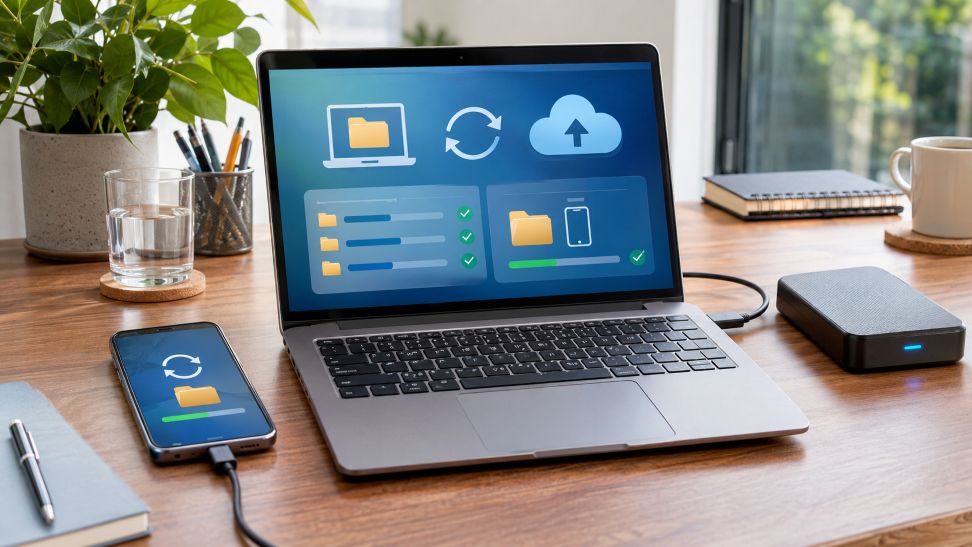
Smartphones store applications, photos, videos, documents, and system files in their internal storage. As these files accumulate, available space gradually decreases. Cloud storage offers another way to manage digital content, but it works differently from the storage built into a phone. Understanding both options helps users choose suitable devices and manage files more effectively.
Choosing a storage capacity starts with understanding personal usage. Someone who mainly sends messages may need less space than someone recording videos or downloading games. Information guides like Mobile Phone Comparison Guide (guia CompareCelular) allow users to examine smartphone specifications and compare storage capacities across devices. However, hardware specifications tell only part of the story. Internet access, application behavior, and cloud storage limits also influence how much space someone needs.
Why Local Storage Still Matters
Local storage refers to the built-in space where a smartphone keeps its operating system, applications, and downloaded content. Its main advantage is availability. Files saved directly on the device generally remain accessible without an internet connection, provided the relevant application supports offline use.
This matters when traveling, working in areas with limited coverage, or using applications that depend on large downloaded files.
For example, downloaded navigation maps, music, and documents can remain available when mobile data is unavailable. Local storage also allows users to open saved photos without waiting for cloud downloads.
However, internal capacity has limits. Most smartphones cannot expand their built-in storage after purchase, although some Android devices support removable memory cards.
Google Play Help recommends reviewing storage categories, removing unnecessary downloads, and clearing temporary application files when space becomes limited. These actions can recover capacity without immediately replacing the device.
Cloud Storage Changes How Files Are Accessed
Cloud storage keeps files on remote servers rather than relying entirely on a smartphone’s internal capacity. Understanding how cloud storage works can help users decide which files to keep locally and which to store online. Services such as Google Drive, Google Photos, and Apple iCloud allow users to access supported content across connected devices.
Synchronization is particularly useful for people who work across smartphones, tablets, and computers. A document updated on one device can become available on another after the changes synchronize.
Cloud services can also reduce local storage pressure. Apple Support explains that iCloud Photos can retain full-resolution images online while keeping smaller, optimized versions on an iPhone.
Nevertheless, cloud storage has practical limitations. Uploading large videos takes time, and retrieving online files depends on connectivity. Some applications support offline copies, but those downloads still consume local space.
What Happens When Internet Access Becomes Unreliable?
Connection quality changes the balance between local and cloud storage. Someone with dependable home Wi-Fi may find remote storage convenient. People who frequently travel through poorly connected areas may need more files saved locally.
Apple Support notes that poor network conditions can interrupt iCloud Photos synchronization. Uploads may resume once conditions improve.
Cloud access can also consume mobile data. For users with limited data allowances, repeatedly downloading large files may become inconvenient or costly.
Which Files Consume the Most Phone Storage?
Storage requirements vary according to the content people create and download. Several categories deserve attention.
Photos and Videos
Photo libraries can grow substantially over time, particularly when users regularly record high-resolution videos. Longer recordings generally require more space, although compression settings influence file size.
Apple Support identifies photos and videos among the common categories that occupy device storage. Its storage management guidance recommends reviewing large files and removing unnecessary content.
Applications and Games
Applications require storage for installation files, downloaded resources, and user-generated data. Games may need additional downloads after installation, while messaging applications can accumulate attachments and cached media.
Google Play Help distinguishes temporary cached files from application data. Clearing a cache can recover space, while clearing application storage may permanently remove locally saved information.
Offline Downloads
Downloaded movies, podcasts, playlists, and documents also affect storage needs. These files can be useful without internet access, but forgotten downloads may occupy valuable space.
Regular reviews help users identify files that are no longer necessary.
How Much Storage Is Enough for Everyday Use?
No single capacity suits everyone. A practical estimate should consider current usage, planned downloads, and how long the phone will remain in service.
- 64 GB: May suit light users who install relatively few applications and regularly move files elsewhere.
- 128 GB: A reasonable starting point for everyday messaging, photography, browsing, and moderate application use.
- 256 GB: Provides greater flexibility for larger application collections, frequent photography, and offline entertainment.
- 512 GB or more: Worth considering for extensive video recording, large games, or substantial offline media libraries.
These ranges are general planning guidelines rather than universal requirements. Actual usable capacity is lower than advertised storage because the operating system and preinstalled software occupy space.
Before buying, users can check their current storage settings to identify the largest categories. Apple Support and Google Play Help both provide instructions for reviewing storage consumption on supported devices.
When Cloud Subscriptions Become Another Limitation
Cloud storage is convenient, but free accounts have restrictions. Google One Help states that standard Google Accounts include up to 15 GB shared across Gmail, Google Drive, and Google Photos.
Meanwhile, Apple Support states that iCloud accounts include 5 GB of free storage. Additional capacity is available through paid plans.
Subscription costs can therefore become part of a phone’s long-term operating expenses. Users should compare these recurring charges with the upfront cost of choosing a device with more internal storage.
Combining Both Options Without Confusing Syncing With Backup
A balanced approach keeps frequently used applications and essential offline files locally while placing less frequently accessed content in cloud storage.
However, synchronization should never automatically be considered a separate backup. Apple Support explains that deleting a photo from a device using iCloud Photos also removes it from other synchronized devices. Synchronized photos are excluded from ordinary iCloud device backups.
Important files should therefore have independent backup copies, preferably stored separately from the synchronized library.
Conclusion
The most suitable phone storage capacity depends on daily habits, connection reliability, and long-term needs. Local storage supports dependable offline access, while cloud services improve flexibility across devices. Neither approach completely replaces the other.
As smartphone cameras and applications continue evolving, reviewing actual storage usage will remain more useful than choosing capacity based on specifications alone. Combining sufficient internal space, selective cloud storage, and independent backups offers a practical way to manage growing digital collections.